Showing posts with label 3D Visual Design. Show all posts

Friday, 27 March 2015

Maya Modelling Assignment - Human Character

Part of our assessment task was to create a human model in Maya, unwrap the UV's and then texture it. We were given two sides of a character called 'Finn' with the essential aims of this is to explore more techniques of 'box modelling' and end up with a low polygon 'tri' count.
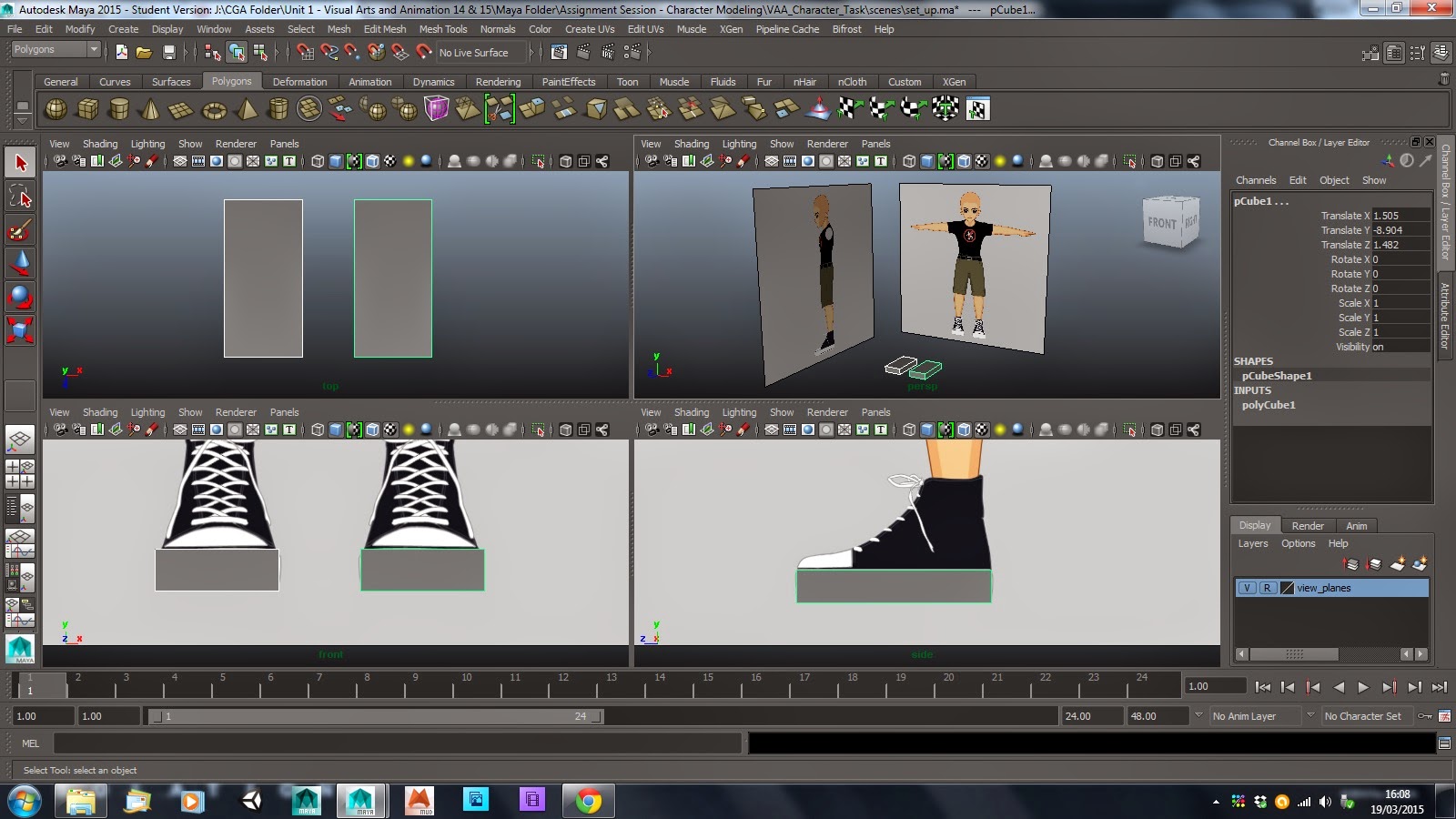


Most of the time when modelling or sketching a human I would start at the head and then work my way down but as this is a simple yet efficient way of modelling, I went from the feet up. 


One of my main aims when extruding up was to space out the edges evenly and form squares as straight as possible on the flat surfaces. However, this was time consuming as I had to select areas of vertices that I though fit well and shape the spots that were not covered by that of the reference images.


When I had completed the legs, I used my own for a top down perspective reference which was really helpful and formed the calf's and flat shins. For the trousers, I covered an extrude outwards and then back down like a glove. In addition, I made sure to keep a low bevel like on the inside for when it came to texturing.


As the reference image from the front was completely out of proportion (to a realistic human figure) I had a hard time working the legs at an unnatural angle. I included the pleat down the front of the shorts and also along the back; at the indent where the base of the spine is.


Previously, before I had known about low polygon 'tri' count, I made the above model in about twelve minutes. Now that I think about it, it is more efficient to do it this way rather than rush it and have too many vertices and edges. Additionally, I would have had to select almost every vertices and transform it, so this was definitely the wrong way to go!


As I worked my way up towards the chest and shoulders, I studied many of the images given to us by our lecturer to get a better understanding of how to position them with the flow of the male body.


The hands were one of the trickiest parts to model as there was a lot of re-positioning but thankfully as I am right handed, I used my own left hand for reference alongside the models which was then simultaneously created on the right hand side!


To add a head that was equally too large and ridiculously round, I made a sphere. Next I sub-divided the edges to get the right curved flow whist adding edge loops near to the face con-caved area. 


Thirdly, I selected both the entire body and the sphere head merging them using the combine tool and then selecting the individual vertices and the merge components tool.


After what seemed like forever combining the two sides of the body, I then had to cut all the UV edges along seams like the lining of clothes. Once this was complete I selected UV's with the arrow quick-select key and once highlighting a vertex, held shift and greater then on the keyboard to cover the part I wanted to unwrap. After planar mapping, it was as simple as clicking the unfold button found in the edit UV's tab.


Once this was done with each segment (the hands being the most time consuming with re-sewing edges) I used 'best projection layout' that made the UV Texture Editor display the portions in the precise way possible. In the final model, I had just under 7300 'tris' or polygons.


I then created a PSD network and worked on top of the UV Snapshot. In this image above I have both Maya and Photoshop Elements 11 (of which I own) open to show how I found the right faces I would paint over and display on to.


Above is the complete UV unwrap of which I had some help following a tutorial suggested to me from a fellow student. I enjoyed looking at all the hard work put into making it look right as this is something I wish to do more in the future to build my texturing skills up. https://www.youtube.com/watch?v=HLhazEa8wmw


Here is the complete texture set finished in Photoshop. Unfortunately due to limited time, I could not add more detail to it but as it was a simple cartoon character, I thought it came out well. Furthermore, I spent many hours trying to solve why my texture did not load properly into Maya for a preview. Luckily a technician noticed I had two UV sets instead of one which was causing the problem.


Atop is my UV unwrap and the texture displayed in the UV Editor. I was very pleased with the result in the time I made it in and if I could go over it again I would spend more time around where the seems meet such as at the belt and shoes etc.


Overall this has been a great assignment that has challenged me not only in the UV wrapping but with working on a low poly count that could be used in a game and also used for animating.

Thursday, 12 March 2015

Maya Session - Texturing in Viewport 2.0

In one of our morning sessions, we followed a tutorial from a 3dtotal article. Using an alley model supplied to us, we looked into Viewport 2.0 and DirectX which allowed us to see advanced lighting and shading on objects in real time; like they would appear in-game.


Above and below is my progress in the overall texturing in Maya. By placing DirectX 11 shaders into the scene's objects, we could place texture images over a .psd file template (in Photoshop) and save it as a .tga file. After completing this lengthy but enjoyable task, it was just a matter of adding in the file to the shaders.


Underneath is the drain pipe template we used to texture (and the image I used for it to the right). This was one of the hardest forms to make as the surface was curved. On the other hand, the barrel was somewhat easier as the unwrapped template was level.


Some faces of the textures had to be manipulated using the UV Texture Editor. Here I rotated the lid of the barrel with the flowing planks of wood, following the side panels as it would in reality. I quite enjoyed matching up the structure such as the arch above the window integrated in the wall texture.


Below is the final screenshot from the session model. If I could have spent a bit more time on it, I would of added more grime and weathering to the object's template textures. However, I definitely will look forward to using this technique again in the future.


Saturday, 7 March 2015

Maya Session - Simplified T-Rex: Constructing & Unwrapping UV's

In the last several afternoon sessions on Maya, we learnt how to work from a simple box model, shape, extrude and scale it into an organic form; such as a Tyrannosaurus Rex which we constructed. Below is the first design stage. I spent about an hour or two creating the body and then a further fifteen minutes on the left arm and leg. Using the mirror options in Maya, the symmetrical body can be created on just one side and then mirror 'flipped' to the opposite side. In addition, there is a feature which allows you to do this but work in real time mirroring; acting at the same time as you control the mouse.


At first I followed along with the plan image that was handed to us. However, without sounding impolite, the sketched image was slightly inaccurate (as far as we know of the physique of the carnivore). From being a massive enthusiast of dinosaurs growing up, I have collective knowledge of the form of the body which came in really useful for time management building the shape.


Above you can see I shaped the box into the head at first and then worked my way down along the body extruding. Underneath is the basic body build. I found that using the hotkey bar was really helpful for getting to some features faster as well as the shortcut on the keyboard 'g' which repeats the last command.


Here I deleted the flat bottom face from the hip to extrude the leg cleanly down. Once I had reached to the heel, I then filled the hole and formed the claws. Similarly, I did this with the arms but bent them round constructing the forearms and talons.


By the end of the session, I checked all of the perspective views and saw that the front angle was completely out of proportion. The shape of the T-Rex was actually really lean and streamlined for hunting. To amend this, I pulled on certain vertex's to align the head and hips etc. to that of several reference images on Google.


With the basic body created, I decided to add some teeth in. I did this by creating a square-based pyramid, duplicating it and then placing them at different angles flowing with the mouth which came out alright.


Underneath is the first complete design stage. I found it very simple to work from just a box and structure the model. 


In the second and third sessions, we were given a finished model to follow the smoothing process and then for UV unwrapping.


Above is the smoothing process which was very straightforward; after highlighting and selecting the entire model. This basically adds more polygons into the ones already formed and curves out the shape even more. 


Here are the claws and limbs which look a lot more life-like with the smoothing action applied. I turned on 'see wire mesh' at the start which I think really helps inform you where the faces are flowing on the models.


The final stage in the modelling, to make it ready for texturing, was unwrapping the UV's. In the image above and below is the process, selecting the items, isolating the segments (such as the legs, torso and tail etc.), to highlighting the parts and finally 'unfolding' them. This can be seen in the UV Texture Editor like the T-Rex has been skinned and flattened out.


This task was slightly time consuming as selecting certain areas did not work for me but I managed to complete the UV's and by clicking on a certain setting in the UV editor, the best projection layout was made.


Below is the complete handed out model unwrapped and ready for texturing. Although I think this took longer than it should have over the three sessions, I have learned several new techniques for better time management which will most certainly help for the future.


Friday, 30 January 2015

Mudbox Introduction Session: T-Rex Model

Last week’s session was an introduction into using Autodesk Mudbox sculpting software. I was very excited to find out more about the software ZBrush and especially Mudbox for the freedom and creativity of modelling. Unlike Maya, another Autodesk product, Mudbox allows you to manipulate the object as if it was actual modelling clay. We experimented around with the sculpting tools on a simple cube and learned the basics of how mesh levels work with subdivisions to create more polygons; creating a smooth skin.


We were given the challenge to create our own T-Rex from a starting model prefabricated for use. Above is the second to last level subdivision of my Carnotaurus (a member of the T-Rex family and also one of my favourite Dinosaurs). Fortunately I knew the shape and structure from memory. However, I used some references from Google to tweak the final shapes as seen below.


We were also taught several painting tools and layers of the material. For this simple paint over, I have used a diffuse setting which creates a matt finish. Underneath is the final model and painted body. I really enjoyed making a camouflage like skin and toning the shape with the harsh contrast of yellow and black.


Another really useful tool we were told about was the mirror setting on the hierarchy tab. This simply simultaneously reflected what you do to the opposite side on the axis. This was really helpful when I made something like the horns or teeth as it is tricky to get the exact reflected symmetry for the features. 


Before I painted the second coat of skin colour (the black patterns), I made a new layer; this time selecting bump map. This technique is commonly replicated throughout the games industry and is a key part when texturing a detailed model. Any of the actual texture applied when using this, fools the light into making it look like it is a three dimensional form saving polygons and memory.


Above is one of the stencil tool textures I used which, when using a black brush, applies the detail to the model. As you can see I have used a scalely appearance which I thought worked well near the pale chin and head area.


In the pose tool bar I used the pivot settings to adjust the tail position and also the forearms of the Dinosaur. I also shrunk several features like the head which is prolifically shorter to the snout and the chest which is higher with the tail being longer (one of several characteristics that tells us this Dinosaur was built for speed, rather than brutishness like that of the T-Rex).


Above is the starting model before I did anything to it and below is the final side view of my Carnotaurus model.


We were also given an insight into using the turntable feature which creates a 360° render of the model. Below is my turntable video which I added a shallow depth of field too, to give it a more realistic composition. Overall I have really enjoyed learning the features of Mudbox and look forward to more of the freedom and creativity in modelling it offers.


Monday, 19 January 2015

Maya Modelling Assignment - USS Enterprise

In the first week of the new term, we were given the assignment to create a model of the Starship Enterprise from the original TV Series of Star Trek. In company with this, we were given a technical drawing blueprint image to aid us in the modelling process; as seen below.


Above is a screen capture of the image imported into Maya and cut into formation of the axis of x,y,z. This was a great way of working fast and accurately depicting the model. Below is the first section I worked on using the smooth view on the hull. This allowed me to see the design with a clean face of curved surface. Furthermore, I shaped the vertices and edges while adding in multiple edge loops to shape the fuselage. 


We were taught by our lecturer how to use the Bezier Curve tool on more complex forms which came in handy for the modelling of the radar like dish on the front of the hull. This tool enabled me to create an outline of the top half of the dish in its curvature construct along the x axis. After aligning the move pivot tool to be parallel alongside the dish, I switched to the surfaces tool set and used the revolve feature to create the actual polygonal shape from 2D to 3D as seen below.


Below is the complete dish that I think worked out really well. I made sure to keep a low polygon count as this helps save memory and data space for other components later on.


In the shaded display view I used a feature called XRay which allowed me to see through the object to the blueprint image. I found this was very useful in reflecting on the precision of the model. Below is before I converted the shape of the hull using the smooth tool found in the mesh tab.


Underneath is the finished hull on the model using the smooth tool. I made sure to align the vertices with that of the blueprint and after using the harden edge tool on the faces, it gave that composition a great result.


Here is the recognisable 'flying saucer' bow of the Enterprise. I aimed at extruding the bridge deck on top as this is more ideal in practise when it comes to using a model element as one piece. One error that I made, when creating the plate shape, was not increasing the polygon circumference. The only drawback to this was I had to individually create each edge loop for the sections of rotation; after doing this I equally selected the side edges and distributed them in scale.


Using the front and side view for reference, I formed the rear of the ship with the spine columns leading to the raised engines. Similar to the hull, I made the elongated engines with the key '3' selected in the rounded mode and then used the smooth tool to create it into a basic polygon shape. Unfortunately the process of this is the creation of more edge loops which are then only removable by individually double-click selecting and deleting them.   


Below is final model using the blueprints for final checks. While in the process of modelling I fixed the three images to a locked layer, as so I did not accidentally move them out of position. I believe that small techniques like this one is essential in the long term modelling or with detailed concentration on a specific object and reference.


Finally I added, from the create tab, an area light with a low level intensity to bring out harsh contrast as often seen in space. I have also started studying and following tutorials on the plug-in Mental Ray which renders out the model to a crisp definition along with the lighting which will be really useful to learn for future work.


Here is another angle of the USS Enterprise with the area light illuminated in the '5' key lighting display mode. I am really pleased with how the model has come out and in the time I have produced it in.